Someone driving to a Farmington address for the first time has to find the right door. Google’s help pages say an outside photo does exactly that: it helps people recognize a business when they visit.
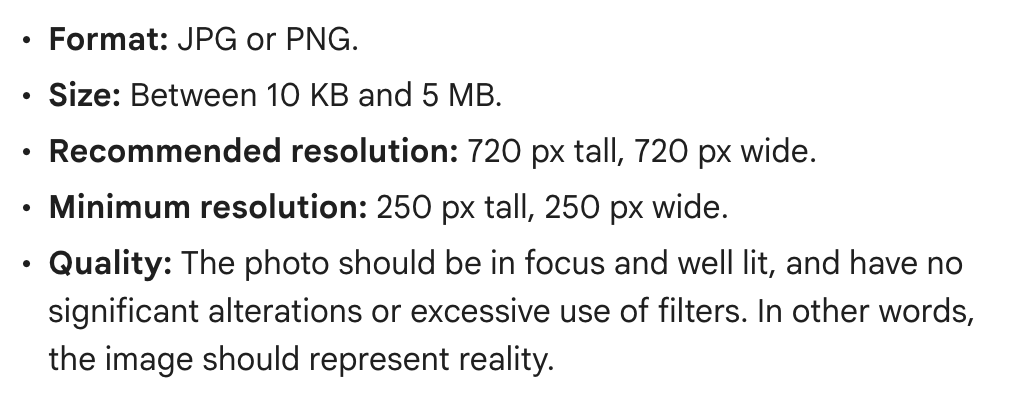
Every photo, Google says, should be sharp, well lit and free of heavy editing or filters, and its photo tips page names AI alongside filters as something to keep out. The line that sums it up: “the image should represent reality.”
For what counts as a usable picture, Google’s photo policy points owners to its Maps criteria. They ask for media you took with a camera and warn against screenshots, stock photos, GIFs, collages, heavily edited images and “imagery created by other parties.”
Our advice: since the criteria want media you took yourself and warn off imagery made by other parties, pictures shot by you or your staff are the safe choice. A hired photographer’s work should at least pass the same tests: taken at the business, and about the business.
Google’s suggested minimums for most businesses:
- Outside: at least three, from each direction customers might approach
- Inside: at least three
- Products you sell: at least three
- Your team: at least three
Files should be JPG or PNG, between 10 KB and 5 MB, and at least 250 pixels on each side, with 720 by 720 recommended. The cover photo sits at the top of the profile, and the logo helps customers spot the business.
What’s at stake. Google’s criteria are blunt: “Low quality media may be removed; quality removals can’t be appealed.” A picture that fails the policy review is marked Not approved and never shows, and a low-quality cover photo can be replaced with one a customer submitted.
The mistake to avoid. Treating the photo section as a bulletin board, with a border or words across the picture. Google’s criteria say to avoid adding borders, text or collaged images. Before posting a team shot, get each person’s OK, because Google treats someone’s face posted without consent as personal information.
Customers can post pictures of your business too. For one of theirs, the route is a removal request, not a delete: open it, select Report a problem and pick a reason. Google reviews the request, which can take several business days, and removes the photo only if it breaks the rules.
How to fix it. Signed in to the profile’s Google account, search Google for “my business” or the business name and city, or tap Business in the Google Maps app. From a computer, Photos, then Add photos, uploads pictures; Add a cover photo and Add a logo sit alongside. From the Maps app, the steps are More, then Add photo. Expect up to 24 to 48 hours before a new photo shows, and nothing appears until the profile is verified. If you cannot manage the listing, go back to No. 1.
A two-minute check. Scroll through the photos you uploaded yourself and delete any that no longer look like the place: on a computer, open Photos, select the picture and click Delete.
The Standard: Pictures made at your place, of your place, showing it as it is. Google’s word for that is reality.
Source: Google Business Profile Help, “Manage your Business Profile photos & videos,” “Tips for business-specific photos on your Business Profile,” “Business Profile photos, videos & posts content policy,” “Report inappropriate photos or videos on your Business Profile” and “Find your business on Google,” with Google Maps’ “Tips for posting media to Maps” and “Prohibited & restricted content,” read Sept. 24, 2026.