
A Business Profile answers the question customers ask before they leave home: will the door be open? Google splits that answer across several settings, and its help pages say which one fits which situation.
The base layer is the normal week, meaning the hours customers can actually walk in. Seasonal businesses may enter the current season as their regular hours. For a midday closing, Google’s instruction is two entries on the same day with different times.
Anything out of the ordinary for a few days, such as a holiday or an event, belongs in special hours, and the weekly schedule stays as it is. Google limits special hours to changed hours, or closures running six days in a row or fewer.
How Google divides the work:
- Regular hours: the hours customers can come in during a normal week.
- Special hours: holidays, events, and closures of six days or fewer.
- Temporarily closed: a longer closure, the off-season, or one with no end date.
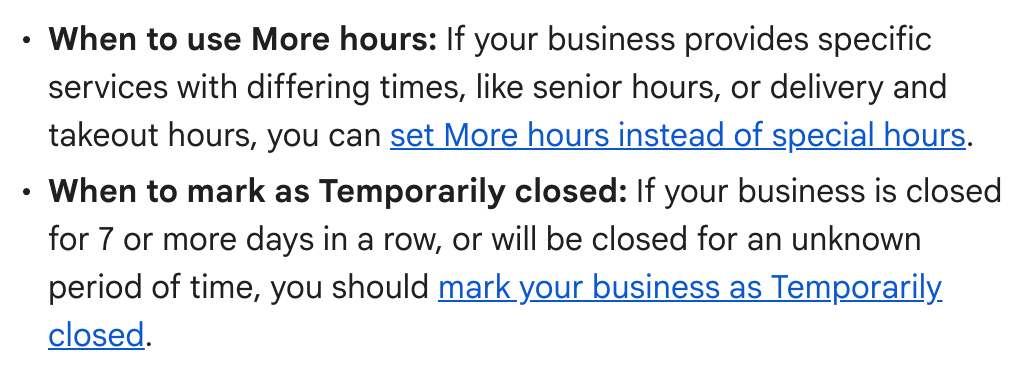
- More hours: separate times for services like takeout or drive-through, usually inside your regular hours. Google’s restaurant example is open 6 AM to 9 PM with takeout from 10 AM to 6 PM. These appear only after regular hours are set.
The stakes. Marking the business Temporarily closed changes how it competes in search. Google’s closing page warns that on broad searches such listings “can rank after open businesses,” and adds that the effect depends on the category, the kind of search and how many similar businesses are also closed. That status is for a closure that is real and long.
Where Google contradicts itself. Every page puts six days or fewer in special hours and eight or more under Temporarily closed. Seven is the exception. Google’s special hours page files a closure of “7 or more days in a row” under Temporarily closed; its page on closing a business says a closure of “7 days or less” takes special hours.
Our advice: closing for exactly a week, choose special hours. One of Google’s two pages permits it, and it avoids the lower placement on broad searches that Google warns can come with Temporarily closed.
How to fix it. Signed in to the profile’s Google account, search Google for “my business” or the business name and city, or tap Business in the Google Maps app. Anyone who is not an owner or manager should begin with No. 1. Then choose Edit profile and Hours. The weekly schedule and the Temporarily closed option sit under Hours, holiday dates beside Special hours, and service times under Add more hours. For special hours to appear at all, your hours must be set to Open with main hours; picking Open with no main hours hides the schedule from your profile.
A two-minute check. Open special hours and find the next holiday, remembering that Google can take up to three days to show a change. If the date is missing, add it, whether you will be open or closed.
The Standard: A normal week is regular hours. A holiday or a closure of up to six days is special hours. Eight days or more, or no end date, is Temporarily closed. For exactly seven, which Google’s pages answer both ways, our pick is special hours.
Source: Google Business Profile Help, “Edit your business hours,” “How to set Special hours,” “How to set More hours,” “Mark your business as closed,” “Guidelines for representing your business on Google” and “Find your business on Google,” read Sept. 24, 2026.